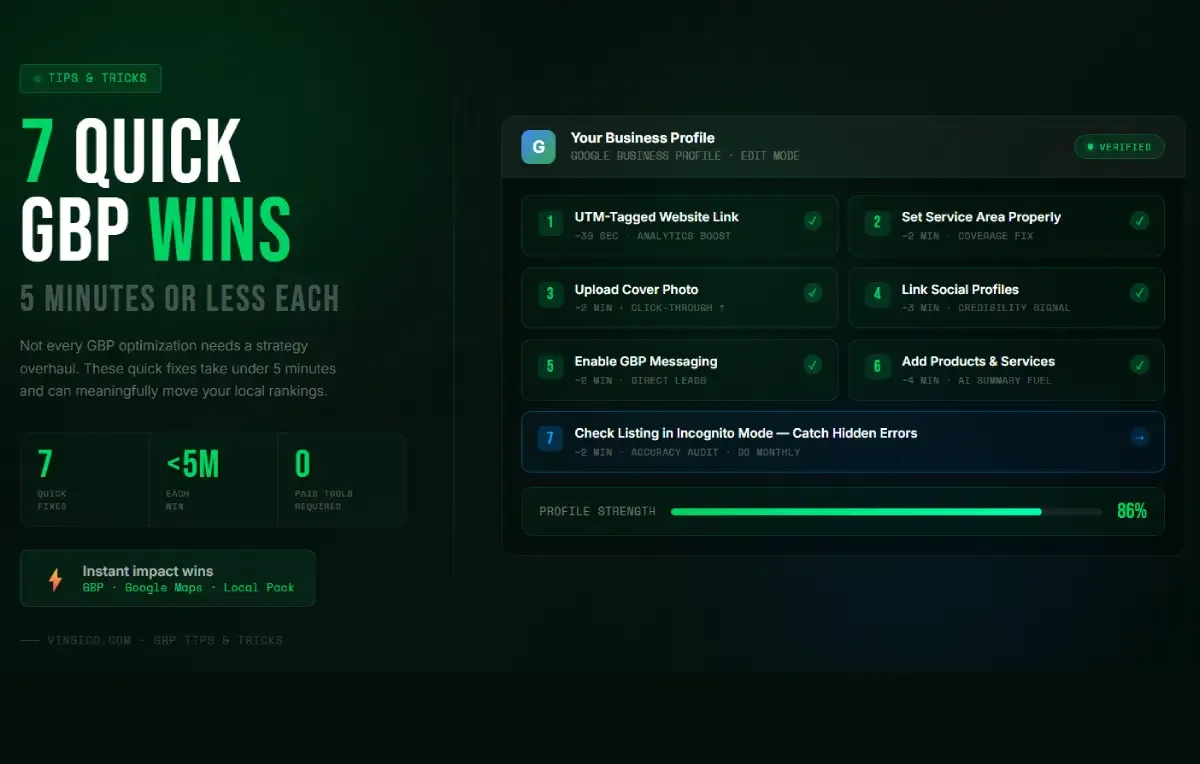
1. Add a UTM-Tagged Website Link
This one takes about 30 seconds and immediately improves your ability to measure what your GBP listing is actually doing for your business.
Replace your plain website URL in your GBP listing with a UTM-tagged version:
yoursite.com?utm_source=google&utm_medium=organic&utm_campaign=gbp
From that point forward, Google Analytics separates your GBP traffic from other organic sources. Most businesses are genuinely surprised by how much traffic their profile drives once they can actually see it. Without the UTM tag, that traffic shows up mixed into general organic, and you have no way to evaluate whether your listing is working.
2. Set Your Service Area Properly
If you serve customers at their location rather than at a storefront, this one is worth checking right now. Plumbers, electricians, mobile groomers, cleaners, and similar businesses need to be set up as service-area businesses in GBP, not as storefronts, and then define up to 20 service areas using city names rather than zip codes.
City names are how most customers search. They also give you broader geographic coverage. Navigate to your GBP listing, select Edit Profile, find the Service area section, and make sure what is listed actually reflects where you work. This is the kind of thing that gets set up once and then never revisited, which means businesses often have service areas that are wrong or too narrow years later.
3. Upload a Good Cover Photo
Your cover photo is the first thing people see in local pack results and on Maps. It shapes whether someone clicks through before they have read a single word about your business. A sharp, well-lit photo of your actual business, your team at work, or your location will outperform a stock image or a plain logo every time.
Google's recommendation is a minimum of 720x720 pixels. Avoid text overlays; they look cluttered at the thumbnail sizes Google uses in search results. If your current cover photo is outdated, blurry, or lifted from a stock library, replacing it takes two minutes and is one of the most visible improvements you can make to your listing.
One useful update in 2026: Google added a feature called "Transform with AI" that can generate cleaner or more professional backgrounds for your photos directly within the GBP dashboard. Worth experimenting with if you do not have a professional shoot to pull from.
4. Link Your Social Media Profiles
This is a genuinely new feature that most businesses have not acted on yet. Google now allows you to link Instagram, Facebook, LinkedIn, X, YouTube, and other social profiles directly to your GBP listing. The links appear in your business panel in search results, adding credibility and giving customers another path to your business.
Go to Edit Profile in your GBP dashboard and look for the Social profiles section. Add every platform where your business has an active presence. This takes about three minutes and is one of the few places where having a well-maintained social presence directly shows up in local search results. It also strengthens the association between your social accounts and your verified business identity, which matters for how Google's AI summarizes your business in AI Overviews and Copilot-style results.
5. Turn On Messaging (and Know the Rules)
GBP messaging lets customers contact you directly from your listing. It is available on both mobile and desktop as of 2025, and you can set up automated welcome messages for after-hours inquiries so no one is left waiting with no response.
One thing the original setup guides do not mention: Google monitors response times and requires replies within 24 hours. If your business consistently fails to respond within that window, Google can deactivate the messaging feature on your listing. Before you enable it, make sure someone is assigned to check messages daily. You can also add FAQs inside the messaging tool that give customers instant answers to common questions before a conversation even starts.
Enable it from your GBP dashboard under the Messages tab.
6. Add Products or Services
The Products and Services sections of your GBP listing appear directly in your knowledge panel in search results. Adding at least 3 to 5 items with photos, descriptions, and pricing gives potential customers substantive information before they ever visit your website, and it gives Google additional content to match against search queries.
This is particularly relevant in 2026 because Google's AI-generated summaries of businesses now pull from Products and Services data when generating conversational answers to local queries. A fully populated products section increases the chance of your business being accurately described in those AI answers.
Go to Edit Profile in your GBP dashboard and look for the Products or Services section.
7. Check Your Listing in Incognito Mode
Open a private browser window and search for your business by name. Look at the listing exactly as a customer would see it. It takes two minutes and routinely turns up problems that would otherwise go unnoticed.
Look specifically for:
- Suggested edits that other users have submitted and Google may have accepted without notifying you
- Incorrect hours, particularly if you have seasonal hours or if holiday hours from months ago are still showing
- User-uploaded photos that misrepresent your business or look unprofessional (you can report these from your dashboard)
- Attributes that are outdated or missing
- Reviews that have not been responded to
Google allows users to suggest edits to your listing, and some of those edits go live automatically. The incognito check is the fastest way to catch this. Do it once a month and you will consistently stay ahead of accuracy problems that silently drag down your performance.